
Google Workspace to
Microsoft 365 Migration
Why businesses make the move, what comes across and what doesn’t, and how a well-run migration is planned, cut over and checked. Written from the migrations we run for Australian businesses.
- Fixed-price migrations
- Weekend cutover
- Security set up first

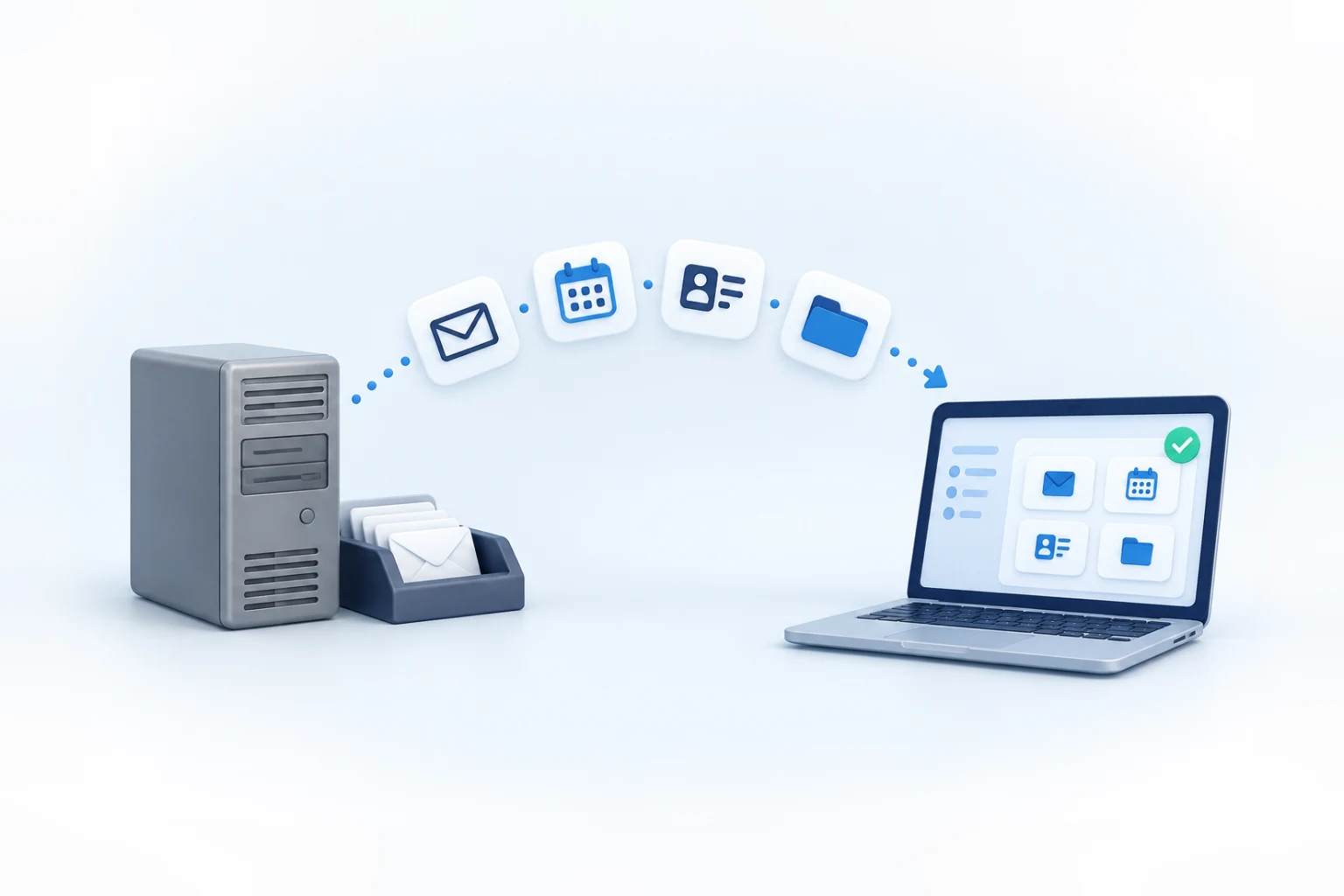
We cut over on a weekend, so your team can finish Friday in Gmail and start Monday in Outlook.
Mapped from Google to Microsoft
Cutover, so Monday starts in Outlook
Migrations quoted up front
Achieved through CyberCert
Why businesses move to Microsoft 365
Google Workspace is a good platform, and plenty of businesses should stay on it. The move usually comes when the way a business works changes: more spreadsheets swapped with clients in Excel, industry software that expects Outlook, or a security requirement that is easier to meet with Microsoft’s device management.
Still deciding? Start with our Google Workspace vs Microsoft 365 comparison.
Desktop Office apps
Business Standard and Business Premium include desktop Word, Excel, PowerPoint and Outlook.
Software that expects Outlook
Practice, legal and accounting software often plugs into Outlook or Windows.
Device management
Business Premium includes Intune for managing and securing laptops and phones.
Matching the people you work with
Sharing and co-authoring are simpler when clients and partners also run Microsoft 365.
What moves, and where it lands
Each Google service has a Microsoft home. Most of your data comes across, and some of it changes shape on the way.
Outlook (Exchange Online)
Outlook calendar
Outlook contacts
OneDrive
SharePoint and Teams
Word, Excel and PowerPoint
Microsoft Teams
Based on Microsoft’s own migration tools. Exact behaviour depends on the tool used, and we confirm it for your data during planning.
What doesn't come across on its own
These items need a decision, a rebuild or a manual step. Finding them during planning costs far less than finding them on Monday morning.
Google Sites
Microsoft’s tools don’t migrate Google Sites. Pages are rebuilt in SharePoint, or retired.
Scripts and add-ons
Apps Script automations and Workspace add-ons don’t convert. They are rebuilt with Microsoft tools or replaced.
Links shared with outsiders
Links shared with clients and suppliers aren’t recreated. External sharing is set up again on purpose, not copied.
Out-of-office replies
Vacation and automatic reply settings don’t move, so anyone away needs theirs set again in Outlook.
Older file versions
Some tools copy only the latest version of each file unless told otherwise. Decide how much history you need.
Forms and Drawings
Drawings come across as images. Forms can move to Microsoft Forms with the right tool, but check each one still works.
Planning a move off Google Workspace?
Tell us how many people you have and what you use today. We’ll look at your setup and give you a written plan and a fixed price before any work starts.
A Google to Microsoft migration, stage by stage
Your team keeps working in Google Workspace until the cutover weekend.
Inventory
We list every mailbox, shared inbox, shared drive, calendar, domain record and app connected to Google, and agree what moves, what is archived and what is retired.
Build Microsoft 365
Accounts, licences, shared mailboxes and SharePoint sites are created, with multi-factor authentication and our security baseline in place before anyone signs in.
Copy in the background
Email, calendars, contacts and files are copied while everyone keeps working, so only recent changes are left for the weekend.
Weekend cutover
We switch mail delivery to Microsoft 365, copy the final changes and prepare Outlook, OneDrive and Teams for Monday.
Check and settle in
Mailboxes, files and calendars are checked against Google, and we are on hand for questions in the first working days.
Decisions to make before any data moves
Licences
Choose the right Microsoft 365 plan for each person. Annual licences can be added at any time but reduced only at renewal, so it pays to get the count right. Plans are listed on Microsoft’s Australian business plans page, and as a Microsoft Partner and Cloud Solution Provider (CSP) we quote current licence pricing with every recommendation.
Shared inboxes and former staff
Group addresses such as enquiries@ or accounts@ become shared mailboxes, so nobody shares a password. Mail and files belonging to former staff can be archived rather than deleted.
Laptops and phones
Laptops that sign in with Google accounts need a new sign-in method. Device management and independent backup can be added as options; they aren’t part of a standard migration.
Your part of the migration
- Admin access to Google Workspace
- A login to your domain registrar or DNS host
- A list of staff, shared inboxes and anyone leaving
- The software that sends email or connects to Google
- Every computer fully updated before work starts
- One contact who can make decisions
What happens over the cutover weekend
Before the weekend we shorten how long other mail servers remember your settings, so the change spreads faster. Then we point your domain’s mail records (MX) at Microsoft 365, copy the last emails and files, and check that new mail is landing in Outlook.
Some mail servers keep delivering to Google for a while. Microsoft notes it can take up to 72 hours for other systems to recognise a changed MX record, so we keep syncing from Google until that window has passed, and mail sent in the meantime should still reach the new mailboxes.
- Mail records switched to Microsoft 365
- Final emails and files copied across
- SPF, DKIM and DMARC updated for Microsoft 365
- Google Workspace kept as a safety net
Your first days on Microsoft 365
A short list of things to tidy once everyone is in Outlook.
Turn mailbox rules back on
Migrated rules arrive switched off. Each person checks theirs in Outlook before turning them on.
Set out-of-office replies again
Automatic replies don’t migrate, so anyone on leave needs theirs set up in Outlook.
Re-send recurring meetings
Regular meetings created with Google Meet links are re-sent as Teams meetings.
Recreate outside sharing
Files shared with clients and suppliers are shared again from OneDrive or SharePoint, deliberately.
Add the account to phones
Staff add Outlook and Teams on their phones, signing in with multi-factor authentication.
Check business software
Apps that send email, such as accounting or practice software, are tested with the new mailboxes.
Keep Google until you're sure
Google Workspace stays as a safety net until checks are done and anything you must keep is exported. Then it is cancelled.
Add Copilot when ready
Once permissions and sharing are tidy, Copilot can be added for the people who will use it.
We work in Google and Microsoft every day
We are a Google Cloud Partner and a Microsoft Partner and Cloud Solution Provider (CSP), and we achieved SMB1001 Gold through CyberCert. We migrate in both directions and support both platforms afterwards.

SMB1001 Gold

Partner

Partner and Cloud Solution Provider (CSP)

Google Cloud Partner
Google Workspace to Microsoft 365: common questions
How long does a Google Workspace to Microsoft 365 migration take?
It depends on the number of people, how much email and Drive data you have, and how many shared drives and connected apps need planning. Email and files are copied in the background while your team keeps working, and the cutover itself happens over a weekend. You get a written plan before any work starts.
How much does it cost to migrate from Google Workspace to Microsoft 365?
It depends on mailboxes, data volume, shared drives and devices. We assess your setup and give you a fixed price before any work starts, so the quote doesn’t grow as data is copied. Microsoft 365 licences are billed separately, and we quote current licence pricing with every recommendation.
Will we lose emails or files when moving from Google to Microsoft?
A planned migration shouldn’t lose anything. Data is copied in the background, the last changes move at cutover, and mailboxes and files are checked against Google afterwards. Google Workspace stays available as a safety net until you’re satisfied, and anything that doesn’t migrate, such as Google Sites, is identified during planning.
Do Google Docs and Sheets convert to Word and Excel?
Yes. Migration tools convert Docs, Sheets and Slides into Word, Excel and PowerPoint files. Simple documents convert cleanly. Complex formatting, some formulas and anything driven by Apps Script need checking, and scripts have to be rebuilt. We test your most important files during planning.
Can we keep our email addresses when we move to Microsoft 365?
Yes. Nobody gets a new address, and your domain name doesn’t change. At cutover we change your domain’s mail records so new email is delivered to Microsoft 365, and we update SPF, DKIM and DMARC at the same time so your domain stays protected against spoofing.
Why is the cutover done over a weekend?
It is the quietest time for most businesses. Mail delivery is switched and the final changes are copied while nobody is working, so your team can finish Friday in Gmail and start Monday in Outlook, with us on hand for the first questions.
What happens to our Google Workspace subscription after the move?
Keep it running until mailboxes and files have been checked and anything you must keep has been exported. Then it can be cancelled. Check your Google Workspace plan’s commitment terms before you plan the cancellation, because some plans run to an annual renewal date.
Should we move to Microsoft 365 or stay on Google Workspace?
Stay if your team works mostly in the browser, co-edits live documents and has no software tied to Outlook. Move if desktop Office, Outlook-based software or Microsoft’s device management matter more. Our comparison guide covers the differences, and we support both platforms every day.
Related pages
Microsoft 365 and Google Workspace migrations
Our migration service, in both directions.
Google Workspace vs Microsoft 365
Which platform suits how your team works.
Microsoft 365 support
Setup, security and day-to-day management.
Data backup and recovery
Independent backup for Microsoft 365.
Copilot and Gemini for small business
Rolling out AI once you have moved.
What is MFA?
Why every new account needs it.
Plan your move to Microsoft 365
Tell us what you run on Google Workspace today. We’ll review your mailboxes, drives and connected apps, then give you a written plan and a fixed price.
- A written migration plan
- A fixed price before work starts
- Cutover over a weekend
Prefer to talk? Call 1300 619 750, Monday to Friday.
Tell us what you need and we’ll get back to you.